Steam Deck & Linux guide
Run the native glibc 2.31 AppImage on SteamOS without Proton, configure 30 fps pacing, and apply RADV handheld memory fixes.
- Binary: Native AppImage
- Sysroot: glibc 2.31
- Data: ~/.local/share/mkw-recomp
- Target: 720p @ 30 fps
Why the Linux AppImage runs natively on SteamOS
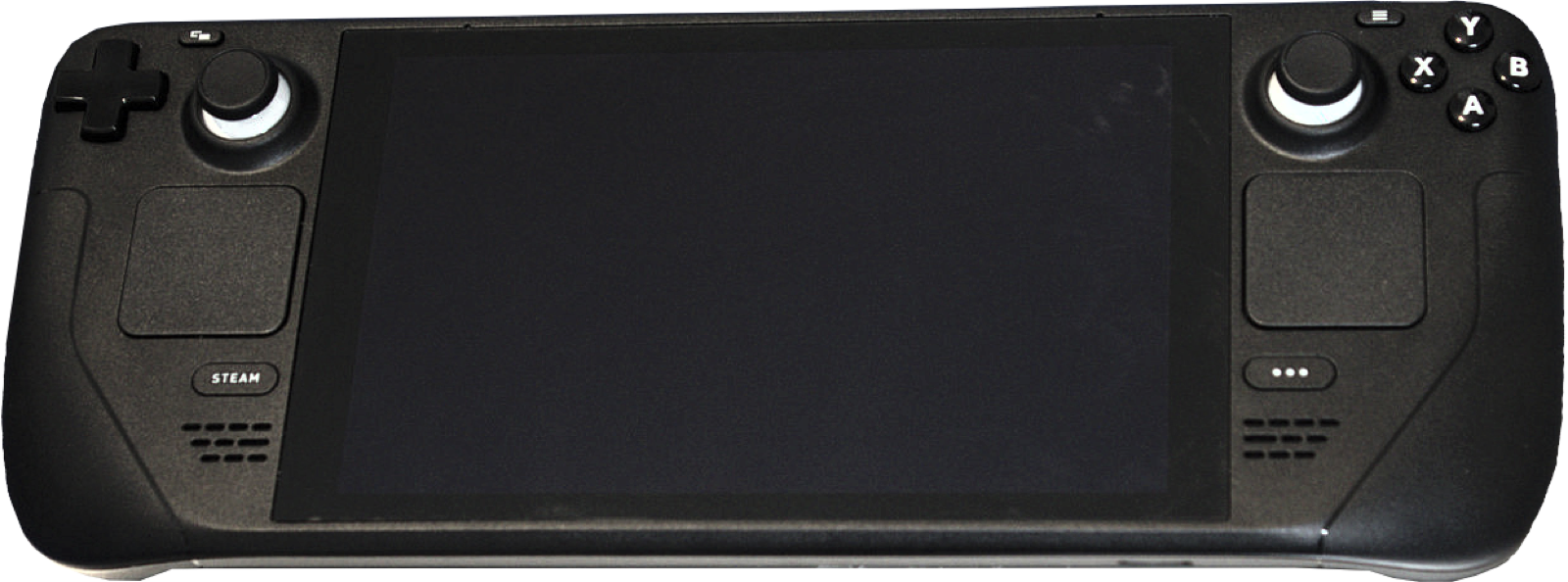
Upstream builds mkw-recomp-0.1.8-x86_64.AppImage against the Steam Runtime 3 “sniper” SDK sysroot (glibc 2.31) using Clang and SDL 3.4.18 (tools/build/README.md). That means it launches directly on SteamOS, Bazzite, ChimeraOS, Debian 11+ and Ubuntu 20.04+ without Proton or Wine translation layers.
Step-by-step Steam Deck & Linux handheld setup
- Switch your Steam Deck (or SteamOS handheld) to Desktop Mode and ensure at least 30 GB of free space on internal NVMe storage (recommended over slow microSD cards for compiling 360 C files and 11,561 shaders).
- Download
mkw-recomp-0.1.8-x86_64.AppImage(153.3 MB) from Download & SHA-256, open Konsole, and mark it executable:chmod +x ~/Downloads/mkw-recomp-0.1.8-x86_64.AppImage ~/Downloads/mkw-recomp-0.1.8-x86_64.AppImage - Click Game files, select your decrypted Mario Kart World 1.0.0 dump folder (
exefs/+romfs/), and press Prepare. Keep the handheld plugged into AC power; setup takes ~15–22 minutes on modern AMD RDNA2/RDNA3 APUs. - Once setup completes, open Settings > Screen:
- Set Frame rate to 30 (avoids Automatic 30/60 slow-motion toggling).
- Keep internal resolution at 720p (matches the maintainer’s Radeon 660M RADV baseline of 31–33 ms).
- Optional in v0.1.8: test Frame generation > 2x on Steam Deck OLED (90 Hz / 60 Hz) if you want smoother camera pans.
- In Steam Desktop client, choose Games > Add a Non-Steam Game to My Library, browse to
mkw-recomp-0.1.8-x86_64.AppImage(or the.desktopshortcut created by the start screen), and return to Gaming Mode. Do not force a Proton compatibility tool—let it run as a native Linux binary.
ROG Ally X & AMD APU memory carve-out notes (Issue #50)
Handheld APUs share system RAM between CPU and GPU. In v0.1.8, upstream shipped two specific fixes for SteamOS handhelds such as the ASUS ROG Ally X (Issue #50):
- Firmware carve-out accounting: integrated GPU memory budgets now count the BIOS UMA carve-out accurately so memory caps do not over-allocate and crash at startup.
- Sparse tile RAM fallback: when VRAM fills up (#63), sparse course tiles spill to system RAM cleanly instead of faulting the RADV driver.
If your handheld still resets or closes on the splash screen, attach ~/.local/share/mkw-recomp/logs/mkw.log (which now records GPU breadcrumbs around present) to Issue #50.
Common questions
Should I run the Windows ZIP through Proton or use the Linux AppImage?
Always use the native Linux AppImage on SteamOS and Linux handhelds. Mesa RADV is the maintainer’s primary development driver (Radeon 660M on Linux), and native Linux setup finishes nearly twice as fast as Windows (15.5 min vs 30 min in v0.1.8).
Where does MKW Recomp store saves, shaders and compiled files on Steam Deck?
Everything generated lives in ~/.local/share/mkw-recomp, separate from the AppImage file itself.